If emails feel delayed when using Microsoft Outlook, it's possible you enabled "Sync with Microsoft Cloud" when configuring your Outlook mail client. If you're unsure, open a support ticket and ask if we can check the log files to see if Microsoft servers are checking your email.
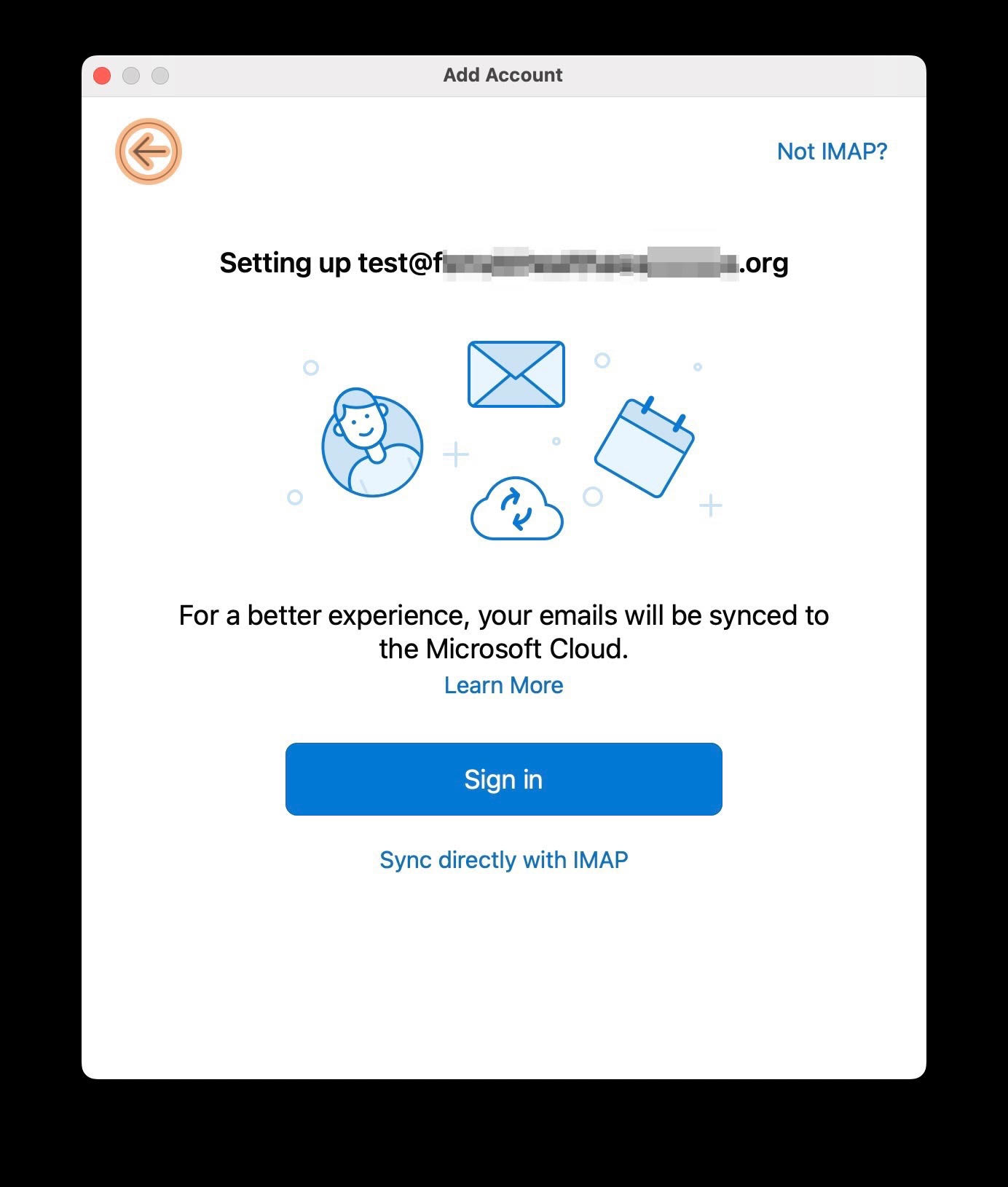
When you first set up an account with Outlook, Microsoft tries to get you to route things through their servers as a middleman "for a better experience". Other customers have found it to be frustrating and slow to receive incoming emails when set up like this. The best way to resolve this, is to remove the account from Outlook and then add it again, but this time do NOT click "Sign In" on that setup screen. Instead, click "Sync directly with IMAP". That screen looks like the attached.
You cannot disable the “Sync with Microsoft Cloud” feature in Outlook without removing and re-adding your account. The only way to turn off this feature is to delete the existing account and reconfigure it while ensuring that the “Sync with Microsoft Cloud” option is disabled during setup.
Since mail is on the server, and it's using IMAP, nothing should be lost by deleting and re-adding this IMAP account to Outlook. The only difference is to skip clicking the blue Sign In button during initial setup. Instead, go down the "Sync directly with IMAP" path. To remove the account you currently have, you can open accounts, highlight it and click the "minus" at the bottom. Click Sign Out On This Device (or all if you choose) and it will remove it. Then click the "plus" icon and re-add, this time with the "Sync directly with IMAP" choice.